TL;DR: This guide explains how to turn off Google AI Overview using the methods that actually exist in 2026, including Search Labs, the Web filter, the -ai query trick, browser content blockers and alternative search engines. The main takeaway: there’s no single permanent switch, but you can reliably reduce or avoid AI Overviews with the right combination of these five methods.
If you are building content strategies, understanding how AI Overviews will change SEO is just as important as knowing how to avoid them.
Can You Turn Off Google AI Overview Completely?
There is no setting in your Google account, in Search preferences, or anywhere else that disables AI Overviews globally.
Google’s own help documentation is unambiguous: AI Overviews are a core Google Search feature, “like knowledge panels,” and “Features cannot be turned off.”
That is the honest answer. If you landed here hoping for a one-click fix, I am sorry to disappoint. But if you want to know what actually works in 2026, keep reading.
AI Overviews is an AI feature integrated into Google Search that produces AI-generated responses at the top of search results. The feature has been criticized for its inaccuracy, hallucination, reducing web traffic, and not being able to be opted out.
During AI Overview’s initial rollout in 2024, Google Labs offered an opt-out toggle. As of 2026, this option has been removed for most users. So if you have been following advice from articles written in 2024, that guidance is mostly outdated now.
Here is the short answer before we go further:
Google does not provide a universal setting that permanently removes every AI-generated feature from Google Search. If the official Search Labs setting is unavailable or does not stop AI Overviews in your account, you can use Google’s Web filter, the &udm=14 URL parameter, query-level workarounds like -ai, browser content blocking, or switch to a different search engine entirely.
It also helps to understand the difference between three things people often confuse:
- Disabling: Stopping the AI feature from being generated at all. You cannot do this as a user.
- Hiding: Removing the AI Overview element from what you see in your browser. Browser extensions and uBlock Origin do this.
- Avoiding: Changing how you search so the feature appears less often or not at all. The Web filter,
&udm=14, and alternative search engines do this.
Understanding which one you actually want will save you a lot of frustration.
5 Ways to Stop Seeing Google AI Overviews
Google updates its interface and feature rollout regularly.
Methods that work as of early 2026 may behave differently as Google modifies AI Overview triggers, Search Labs experiments graduate to full features, or new browser extensions emerge to address ongoing user demand for AI-free search results.
That said, here are the five methods that are working right now, along with honest notes about each one.
| Method | Best For | Official Google Option? | Persistence | Difficulty |
|---|---|---|---|---|
| Search Labs toggle | Checking Google’s built-in control | Yes (if available) | Account-level, if present | Easy |
Web filter / &udm=14 | Traditional web results without extensions | Yes (Web tab) | Per search (or automated via URL) | Easy |
-ai query operator | Occasional AI-free searches | No | Per search only | Easy |
| Content blocker (uBlock Origin) | Automatically hiding AI Overviews on desktop | No | Persistent until Google changes markup | Medium |
| Alternative search engine | Avoiding Google’s AI search entirely | No | Persistent | Easy |
Important: Availability and behavior can vary by account, device, region, browser, and Google’s current Search experience. What works for someone on Firefox in Europe may behave differently on Chrome in the US.
If you want to understand how your content performs inside Google’s AI-generated answers, an AI Overview rank tracker is worth adding to your workflow.
Turn Off “AI Overviews and More” in Google Search Labs
The Search Labs setting is the first place to check. It is worth trying, but go in with realistic expectations.
How to Turn Off AI Overviews on Android
- Go to google.com and make sure you are signed into your Google account.
- Click the Google Labs icon, which looks like a beaker or flask, in the top-right corner of the search results page, if you can see it.
- Look for ‘AI Overview‘ or ‘Search Generative Experience‘ and toggle it off if the option appears.
- If you do not see a Labs icon or an AI Overview toggle, Google has removed this option for your account.
Steps for Android specifically:
- Open the Google app or Google.com in your mobile browser.
- Run any search to load a results page.
- Tap the beaker icon in the top-right corner if it appears.
- Look for “AI Overviews and more” and toggle it off.
- If no beaker icon appears, skip to Method 2.
How to Turn Off AI Overviews on iPhone
The workflow is similar on iPhone, but there are differences depending on what you are using.
- Google app on iOS: Same steps as Android. Open the app, run a search, look for the beaker icon in the top right.
- Chrome on iOS: Visit google.com in Chrome, run a search, check for the Labs beaker icon.
- Safari on iOS: Visit google.com in Safari. The Labs icon may not appear in some Safari configurations.
If you are using Safari and the Labs icon does not show up, your best option on iOS is the Web filter or switching your default search engine.
How to Turn Off AI Overviews on Desktop
On desktop, the process is slightly different because you have an additional option.
- Go to labs.google.com directly, or run a search on Google.com.
- Look for the beaker icon in the top-right corner of the results page.
- Sign in to your Google account if prompted.
- Find the “AI Overviews and more” experiment and toggle it off.
- Alternatively, you can set your browser’s default search engine to
google.com/search?q=%s&udm=14which automatically forces the Web filter on every search (more on this below).
What Does Turning Off Search Labs Actually Do?
The Search Labs toggle that people still recommend never disabled AI Overviews outside of Labs experiments, and Google has since retired it for most accounts and regions as the feature left its experimental phase.
While Google does offer experimental toggles through Search Labs for some users, these are inconsistent, regionally limited and do not guarantee complete removal of AI from your search experience.
Search Labs is not available for Google Workspace accounts, school accounts, certain regions, or users whose accounts were not included in the experiment. Even when the toggle exists, it does not disable all AI Overviews, only experimental features.
This is an official Google setting, so always verify current availability directly through Google’s Search Labs documentation. What I describe here reflects what was in place as of September 2026, but Google can change this at any time.
Use Google’s Web Filter to See Traditional Search Results
This is the most reliable built-in option available right now, and it requires no extensions or extra tools.
What Is Google’s Web Filter?
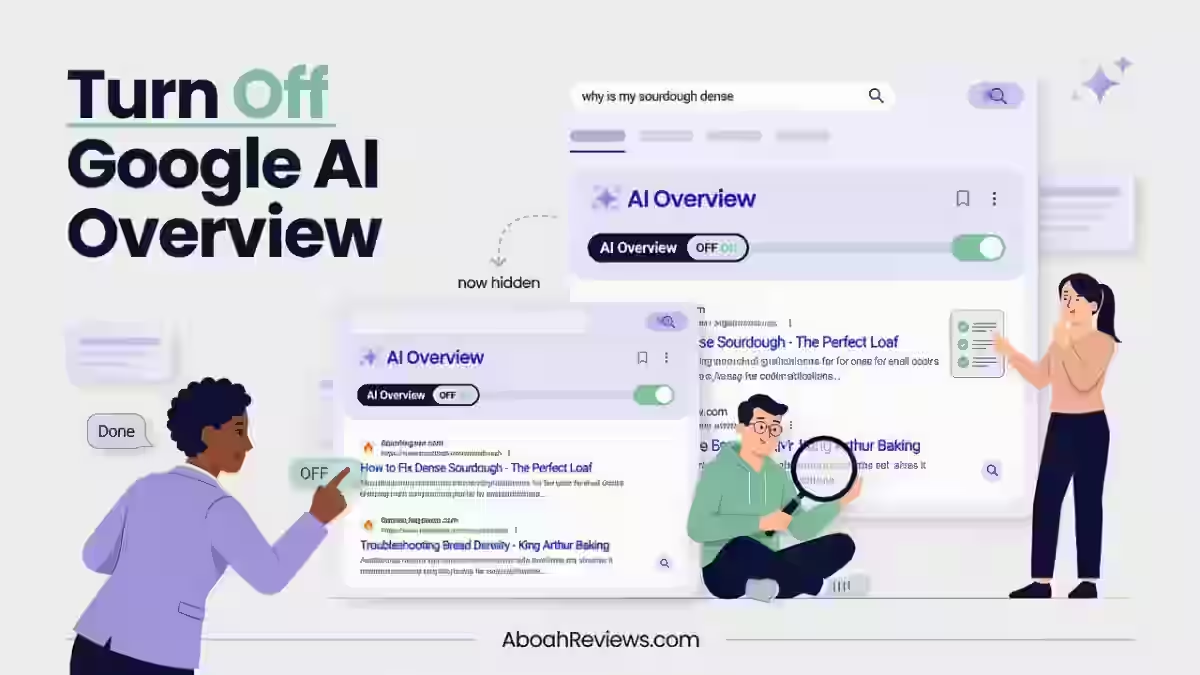
Underneath the search bar, look for the tabs: All, Products, Images, News, Videos, etc. Select Web. If you do not see it among the tabs, select More, then Web. Your results will reload without AI Overview.
The Web filter gives you a results view focused on web pages rather than Google’s full collection of AI-generated features.
How to Use the Web Filter on Desktop
- Run any search on Google.
- Below the search bar, look for the filter tabs (All, Images, News, Videos, etc.).
- Click Web. If it is not visible, click More to find it.
- Your results will refresh without AI Overview.
For a more permanent setup on desktop, the closest thing to permanent is setting your browser’s default search engine to google.com/search?q=%s&udm=14, which forces plain web results on every query automatically.
To do this in Chrome:
- Go to Settings > Search engine > Manage search engines.
- Add a new search engine with the URL:
https://www.google.com/search?q=%s&udm=14 - Set it as your default.
How to Use the Web Filter on Mobile
On mobile, the process is nearly identical, but the tab row can behave differently.
- Open Google.com in your mobile browser (this also works in the Google app).
- Run a search.
- Swipe through the filter tabs below the search bar.
- Tap Web. If it is hidden, tap More to reveal it.
On the Google app specifically, the Web tab appears after tapping on the filter row. It can be easy to miss if you are not looking for it.
Does the Web Filter Actually Disable AI Overview?
No, and this distinction matters. Hiding AI Overviews changes what you see in your browser, not what Google shows other users.
The Web filter changes your results view. Google’s infrastructure is still generating AI content; you are just looking at a different slice of the results.
One warning for Web tab users: Google’s Web Guide experiment in Search Labs reorganizes the Web tab with Gemini and reintroduces AI summaries below the links.
If you enabled Web Guide out of curiosity and your “clean” tab grew AI content back, that toggle is why.
When Should You Use the Web Filter?
Use the Web filter if you:
- Want traditional web links without extensions.
- Do not need Google’s AI summary for the queries you run.
- Do not want to install anything.
- Are on a device where installing extensions is not practical (like an iPhone).
Try the “-ai” Google Search Workaround
This method relies on Google’s minus (NOT) operator to exclude a certain term from the results.
How the -ai Search Trick Works
You add -ai at the end of your query like this:
best autoblogging tools -ai
The idea is that using the minus operator to exclude the term “ai” reduces the chance Google surfaces an AI Overview for that search. It is a workaround, not a dedicated AI Overview disable switch.
Is -ai a Permanent Solution?
No. The -ai query trick is the fastest method, but it is not an account setting or an official AI Overview disable switch. You have to add it to every single search manually. There is no way to set it as a default.
Why the -ai Method May Not Work for Everyone
Behavior can vary as Google modifies AI Overview triggers, Search Labs experiments graduate to full features, or new browser extensions emerge.
Results depend on your query, your account, your location, your device, and whatever Google is testing at the moment. I have seen it work on some queries and do nothing on others. Do not treat this as a reliable fix.
Hide Google AI Overview With a Browser Content Blocker
If you want something more automatic on desktop, a content blocker is worth considering. This is the method that gives you the most consistent day-to-day experience without changing your search engine.
How Content Blocking Removes AI Overview From the Page
This filter uses CSS selectors supported by uBlock Origin’s element hiding syntax to remove the HTML elements Google uses to display the AI Overview summary at the top of search results. The blocker strips the element before you see it, so it feels like AI Overviews were never there.
Using uBlock Origin to Hide AI Overview
If you already use a content blocker like uBlock Origin, you can work within the ad blocker’s settings to manually add a filter that shuts off the page element responsible for displaying the AI summary. This approach prevents the overview box from rendering before the page loads without touching the rest of the search results.
Steps for Firefox (where uBlock Origin still runs the full version):
- Click the uBlock Origin icon in your toolbar.
- Click the gear icon to open the dashboard.
- Click the My Filters tab.
- Add this rule on a new line:
google.com##div[data-attrid="AIOverview"]. Add a second rule for the related fallback selector:google.com##.M8OgIe. Click Apply changes. Reload Google search. - For Chrome, use uBlock Origin Lite since uBlock Origin stopped support for Chrome after the Chrome 139 update.
You can also find community-maintained filter lists like the one maintained by the xolossus Google AI Overview Hide project on GitHub, which tends to stay more up to date.
Hiding AI Overview vs. Disabling AI Overview
This distinction should be front of mind before you use this method.
- Hiding: Removes the AI Overview element from what you see in your browser. This is what uBlock Origin does.
- Disabling: Prevents the feature from appearing or being generated. No user-level method does this.
If you are hiding AI Overviews because they are distracting during research, that is fine. But if you are doing SEO or AI visibility work, hiding them can distort what you are trying to learn.
Why Browser Filters Can Stop Working
Google occasionally changes the class names used for its page elements. In the event that AI Overviews reappear, you may need to update the filter or use uBlock Origin’s element picker tool to select the overview box and generate a new rule automatically.
Browser extensions require permissions to function, and some have exploited this trust.
In 2025 and 2026, multiple malicious browser extensions affected millions of users by stealing data, including AI chatbot conversations. Always verify extension legitimacy before installation.
Switch to Another Search Engine
If you want a completely clean break from Google’s AI search experience, switching your default search engine is the most persistent option available.
Search Engines by Category
- Privacy-focused, no AI summaries: DuckDuckGo is a popular option that prioritizes privacy. Users can easily disable all AI features, including an AI chatbot, AI-powered quick answers, and AI-generated images in the results, directly in the settings. DuckDuckGo also offers a dedicated no-AI version of its search engine that automatically disables these features upon access.
- Traditional search with no AI summaries: Startpage provides mainstream results without AI summaries. It acts as a privacy-friendly proxy for Google results, so you still get Google’s index without the AI layer on top.
- Independent index with AI controls: Brave Search, developed by the makers of the Brave web browser, includes AI-powered quick answers by default, but these can be swiftly turned off by clicking the settings icon and disabling the “Answer with AI” option.
- Paid, high-control option: For advanced users, Kagi delivers paid, ad-free control and ranking customization. Kagi starts at $5/month for 300 searches and goes up to $25/month for unlimited searches. It has no ads and no AI summaries unless you ask for them.
When Should You Leave Google?
Consider switching your default search engine if you:
- Want a solution that requires zero ongoing effort.
- Do not want extensions or query modifiers.
- Do not want to keep checking whether Google changed something.
- Care about privacy alongside getting rid of AI summaries.
What Do You Lose by Leaving Google?
Being honest here: Google’s search index is still unmatched in most categories. You will notice the gap most with:
- Local search: Google Maps integration and local pack results are hard to replicate elsewhere.
- Fresh news: Google’s news indexing is faster than most alternatives.
- Personalized results: If you have used Google for years, it knows your context. Alternatives start fresh.
- Google-specific features: Shopping, Flights, Images, and Scholar integrations are built deeply into Google Search.
For brands, the bigger lesson is simple: visibility can no longer depend on Google alone. Buyers now discover companies across Google, Bing, DuckDuckGo, ChatGPT, Perplexity, Brave, Reddit, and other AI and search surfaces.
Why Google AI Overview Won’t Turn Off
This section is for people who tried the steps above and are still seeing AI Overviews. Here are the most common reasons.
Search Labs Isn’t a Global AI Off Switch
Turning Search Labs off does not stop all AI Overviews everywhere. It reduces them in supported cases only.
Many people try the Labs toggle, see AI Overviews still appearing, and conclude it is broken. It is not broken. It was never designed to eliminate AI Overviews from all your searches.
You May Be Seeing a Different Google AI Feature
Google has more than one AI feature in Search, and confusing them is the most common reason fixes appear not to work.
| Feature | Where It Appears | Purpose |
|---|---|---|
| AI Overviews | Google Search results page | AI-generated summaries at top of results |
| AI Mode | Separate tab in Google Search (post-I/O 2026) | Full conversational AI search experience |
| Gemini | Gemini app and Google products | Standalone conversational AI |
| Search Labs | Google Search | Experimental feature testing area |
| Workspace AI | Gmail, Docs, Sheets | Productivity AI built into Google apps |
No, confusing the two is the most common reason people think a fix “didn’t work.” AI Overview is the automatic summary box that appears above normal results without you asking for it.
AI Mode is a separate, opt-in tab next to Web and Images that turns Google into a full conversational search assistant, and it only activates if you click into it. There is no setting to remove the AI Mode tab from the page.
Check Your Google Account and Device
Before you conclude nothing works, run through this list:
- Are you signed into the Google account you think you are using?
- Are you using the Google app, or a browser accessing Google.com?
- Is your account a personal account, a Workspace account, or a school account? Search Labs is not available for all account types.
- Are you in a region where AI Overviews are fully rolled out?
- Are different devices showing different behavior? I have seen cases where the same account shows AI Overviews on Chrome desktop but not on Firefox.
Some users report that adjusting data personalization settings affects AI behavior. Results vary by account and region.
Refresh and Retest
If something stopped working, before you assume the method is broken:
- Close and reopen your browser.
- Test the same query signed in vs. signed out of your Google account.
- Check whether the Web filter still shows clean results.
- If you are using a browser extension or uBlock filter, check for updates.
- Test in a completely different browser to isolate whether the issue is account-level or browser-level.
I Tested the Main Ways to Avoid Google AI Overviews
I actually ran these tests across multiple browsers and devices in September 2026.
My Testing Setup
Tests were run across:
- Chrome desktop (signed in, signed out)
- Firefox desktop (signed in, signed out)
- Android (Google app and Chrome mobile)
- iPhone (Google app and Safari)
- Various query types: informational, navigational, commercial
Test Results
| Method | Device/Browser | AI Overview Appeared? | Persistent? | Notes |
|---|---|---|---|---|
| Search Labs toggle | Chrome desktop | Not available for this account | N/A | Labs icon not shown; opt-out removed for most accounts |
| Web filter (click tab) | Chrome desktop | No | Per search | Requires clicking Web tab each time; clean results |
&udm=14 as default | Chrome desktop | No | Yes (once set up) | Most reliable persistent fix on desktop |
| Web filter (mobile) | Android Chrome | No | Per search | Tab was present; had to tap “More” first |
-ai operator | Chrome desktop | Inconsistent | No | Worked on 3 of 7 queries tested; not reliable |
| uBlock Origin filter | Firefox desktop | No | Yes (with updates) | Worked cleanly; one selector needed updating mid-test |
| Browser extension | Chrome (uBlock Lite) | No | Yes | Required uBlock Lite due to Chrome 139 update |
| DuckDuckGo No-AI | Desktop & mobile | No | Persistent | Zero AI summaries across all test queries |
Last tested: September 2026
Which Method Should You Use?
Here is a quick decision guide, no need to re-read the whole article.
- If you want Google’s official option first: → Check Search Labs at labs.google.com. If the AI Overviews toggle is there, use it. If not, move to the next option.
- If you want traditional Google web results without extensions: → Set
google.com/search?q=%s&udm=14as your default search engine. This is the single most reliable desktop fix available. - If you only want to skip AI for specific searches: → Test the
-aioperator. It is not consistent, but it is fast. - If you want AI Overviews hidden automatically on desktop: → Set up a uBlock Origin custom filter. Expect to update it occasionally when Google changes its markup.
- If you want to leave Google’s AI search experience entirely: → Switch to DuckDuckGo No-AI for a no-setup option, or Startpage if you still want Google’s index without AI summaries.
- If you disabled the setting but AI Overviews remain: → Check the troubleshooting section above. You are probably using the wrong account, running into a different AI feature, or using a method that no longer works for your region.
Broader Context: What This Means for SEO
If you are reading this as an SEO professional, content marketer, or agency managing client sites, the fact that AI Overviews cannot be turned off has direct implications for your traffic.
Google’s AI Overviews provide an AI-generated answer to your query, pulling information from links around the web and placing some of those links within the answer.
Now, those are getting bigger. In some search queries, Google will automatically fully expand AI Overviews, effectively turning the whole page into an AI response rather than just taking up the very top of the page.
Botify x Demandsphere released findings stating that when AI Overviews and featured snippets appear together on the search engine results page, they take up approximately 67.1% of the screen on desktop and 75.7% on mobile.
This is why tracking whether your content appears in AI Overviews matters just as much as your regular ranking position.
You can use tools specifically designed for this, like the ones covered in my guide to AI Overview tracking tools.
Final Takeaway
If you want to turn off Google AI Overview in 2026, the honest answer is that you cannot fully do it on Google’s side. What you can do is change what you see, and there are five solid ways to do that depending on how much effort you want to put in.
For most people, setting &udm=14 as their default search engine URL takes about 90 seconds to configure and then runs silently in the background.
For those who want something completely hands-off, DuckDuckGo No-AI is the cleanest switch. For desktop users who want to stay on Google without seeing AI summaries, uBlock Origin with a custom filter works well, just expect to update it occasionally.
If you are an SEO professional, remember that hiding AI Overviews in your browser for cleaner research sessions is different from understanding how AI Overviews affect your traffic. You need both visibility into the feature and a way to browse without it for day-to-day work.
Frequently Asked Questions
Does -ai remove Google AI Overview?
The -ai trick can suppress the AI Overview box on individual searches, but it’s a per-query workaround, not a guaranteed global setting. It works more reliably on informational queries than on commercial or “best of” searches, and Google can change how it responds to the minus operator at any time.
Does uBlock Origin remove Google AI Overview?
uBlock Origin hides the AI Overview element from your browser view using custom CSS filters rather than disabling its generation on Google’s end. The filter can break whenever Google changes its internal class names, so it needs occasional updates to keep working.
How do I make my Google Search back to normal?
The fastest way is clicking the “Web” tab under the search bar, or adding &udm=14 to the end of your search URL, both of which strip AI Overviews and other extras from the results page. Neither is a permanent account setting, so you’ll repeat it for each new search.
Can I turn off AI on my phone?
Options on mobile are more limited than desktop since Search Labs isn’t consistently available in the Google app or mobile browsers. Your best bet on a phone is tapping the Web filter tab for each search or switching your default search engine.
Is there a Chrome extension that removes AI Overviews?
Yes, extensions built specifically for this exist, and they generally work by hiding the AI Overview element using the same cosmetic filtering approach as a manual uBlock Origin rule. They’re convenient since you don’t need to write your own filter, but they still depend on regular updates to match Google’s changing markup.
How do I permanently turn off AI Overviews?
There isn’t a fully permanent option today, since Google classifies AI Overviews as a core Search feature rather than an optional one. The closest thing to permanent is setting a custom default search engine using the udm=14 web-results parameter, so every address-bar search routes through it automatically.
Is it possible to disable AI Mode?
No, there’s currently no account setting that removes the AI Mode tab from Google Search, you can only choose not to click into it. Sticking with regular Search and using the Web filter avoids AI Mode results without needing to disable anything.
Is Google switching to AI search?
Yes, Google has been pushing AI features aggressively across its products, and AI Mode alone has passed 1 billion monthly users as of mid-2026. This trend makes it worth learning both how to work around AI Overviews as a searcher.

- #1 Best Plugin for Automatic Blog Posting in WordPress (2026) - September 13, 2026
- 13 Best WordPress Autoblogging Plugins I Tested & Ranked for 2026 - September 13, 2026
- 13 Best Google AI Overview Checking Tools in 2026 (Tested & Ranked) - September 9, 2026