TL;DR: You can automate blog content posting to social media with RSS feeds by connecting your blog’s RSS feed to an automation platform such as Zapier, Make or IFTTT.
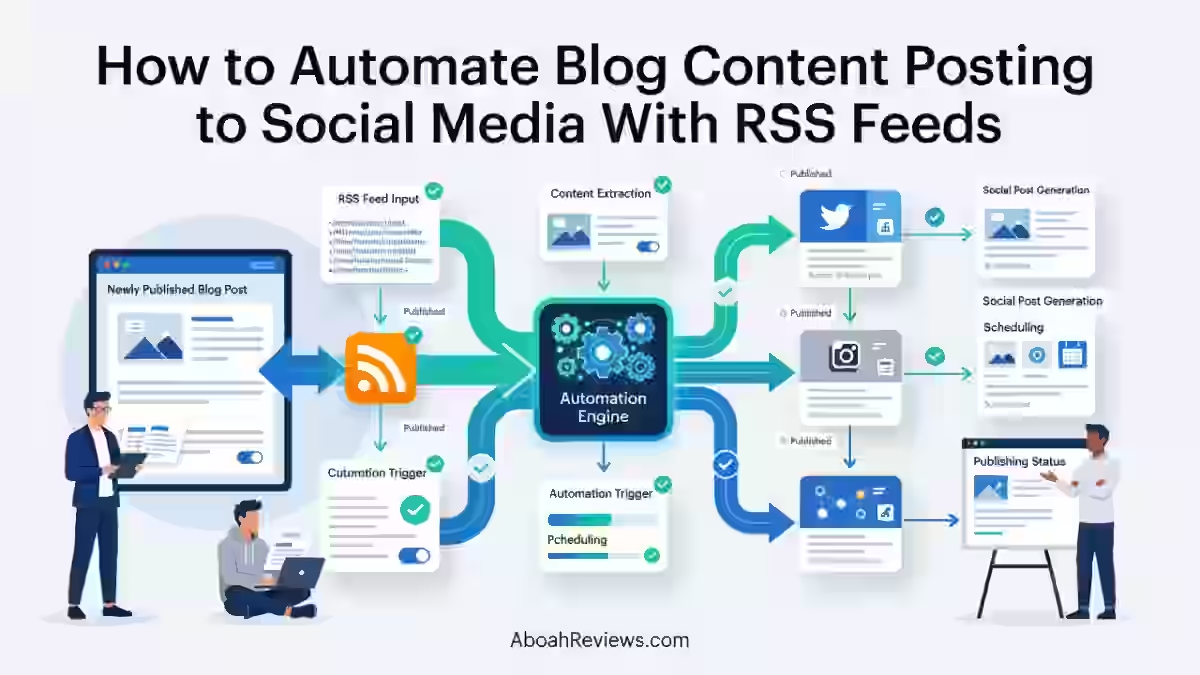
When a new article appears in the feed, the workflow extracts its title, URL, excerpt and image, then routes that data to a social publishing tool or directly to a supported social network.
Choose Your Automation Method
- Dedicated Social Schedulers: Platforms like Buffer, Hootsuite, Metricool or SocialPilot let you paste your RSS link directly into their feed automation settings to auto-share new posts.
- No-Code Workflow Tools: Use Zapier (with “RSS by Zapier”) or Make to build a trigger-action sequence.
- Custom Feed Builders: If your site lacks a clean feed, use RSS.app to generate custom RSS feeds from web pages or content sections.
Step-by-Step Setup Guide
- Find your RSS URL: Usually yourblog.com/feed/.
- Set the Trigger: Configure your chosen automation platform to monitor the RSS link for new items.
- Map the Content Fields: Connect the RSS title, description, and article link fields to your social media post template.
- Configure Publishing Rules: Choose target channels (X, LinkedIn, Facebook page) and define a posting schedule or immediate dispatch.
- Test the Workflow: Publish a test item or pull the latest feed data to verify the preview image and link format appear correctly before turning it live.
The full chain looks like this:
Publish article → RSS feed updates → automation platform detects new item → content is formatted → post is published or scheduled.
If you’re just starting, my breakdown on RSS feeds for autoblogging covers the basics.
Introduction to Automating Blog Content Posting to Social Media With RSS Feeds
If you publish content regularly and still share every post manually to social media, that’s hours of repetitive work every month that a simple RSS workflow can handle for you.
I’ve used RSS-to-social automation across several content projects and it’s one of the least complicated things you can set up, once you understand which layer does what.
This guide explains exactly how to automate blog content posting to social media with RSS feeds, from finding your blog’s feed URL to building a complete multi-platform distribution workflow.
I’ll cover the tools, the steps, the problems you’ll likely hit, and the places where humans still need to stay in the loop.
What I won’t do is oversell this. RSS automation handles repetitive distribution. It does not write better captions, build an audience or fix thin content. That part is still on you.
What Is an RSS Feed?
An RSS feed is a structured, machine-readable file that updates automatically every time you publish a new article.
RSS, which stands for Really Simple Syndication, is a way to get simple, stripped-down content from a source on the internet. An RSS feed contains the title of your page or post along with an excerpt, its URL, author name, and some extra information.
Most WordPress sites generate RSS feeds automatically without any configuration.
You can access a WordPress RSS feed by appending /feed/, /feed/rss/, or /feed/rss2/ to just about any WordPress-generated page.
An excerpt is a condensed description of your content, usually 3 or so sentences, and refers to the summary entered in the Excerpt field when editing a post.
Excerpts are used to briefly describe your content in RSS feeds, in search results, and in lists of pages and posts. If the excerpt is empty, WordPress will automatically display the first 55 words of the post’s content.
When you add a featured image to a WordPress post, it does not always appear in the RSS feed by default. The function get_the_post_thumbnail_url() retrieves the post’s featured image URL. The the_excerpt_rss and the_content_feed filters append the image to both full content and excerpt feeds.
Once implemented, your RSS feed will contain the post’s featured image immediately after the title. This matters when you’re mapping RSS fields to social posts later.
What Is RSS-to-Social Media Automation?
RSS-to-social media automation is the process of using your blog’s RSS feed as a trigger that starts a workflow, ends with a post on a social network.
The three layers in this system each do a distinct job:
- RSS feed = content input and trigger
- Automation platform (Zapier, Make, IFTTT) = workflow engine
- Social publisher (Buffer, dlvr.it, direct API) = distribution layer
Many people confuse these roles and end up buying the wrong tool. Buffer is not an automation engine. Zapier is not a social scheduler. Knowing which layer does what saves you a lot of troubleshooting time.
RSS Automation vs Autoblogging
These are two entirely different things and mixing them up causes real confusion in the autoblogging community.
If you want to understand the broader content production side, the autoblogging guide on explains what autoblogging is and how content creation automation works separately from distribution.
RSS Social Automation | Autoblogging | |
|---|---|---|
Purpose | Distributes existing content | Creates and/or publishes content |
RSS role | Trigger for distribution | May be the content source |
Focus | Content promotion | Content production |
Timing | Happens after publication | Happens before or during publication |
Human review needed | Ideally yes, for captions | Always yes, for content quality |
How RSS Feeds Trigger Social Media Posts
Here is the exact sequence from publish to social post:
- You publish an article on your blog
- The RSS feed file updates with the new item (title, URL, excerpt, image, date)
- The automation platform polls the feed (usually every 5 to 15 minutes)
- The platform detects a new item it hasn’t processed before
- It extracts the relevant RSS fields
- Any filters are applied (category, keyword, post type)
- The social post caption is formatted or AI-generated
- The post is published immediately or added to a queue
RSS by Zapier lets you monitor RSS or Atom feeds and trigger workflows when new items are published. It is often used to track blog posts, product updates, job listings, or news feeds automatically.
How to Automate Blog Content Posting to Social Media With RSS Feeds
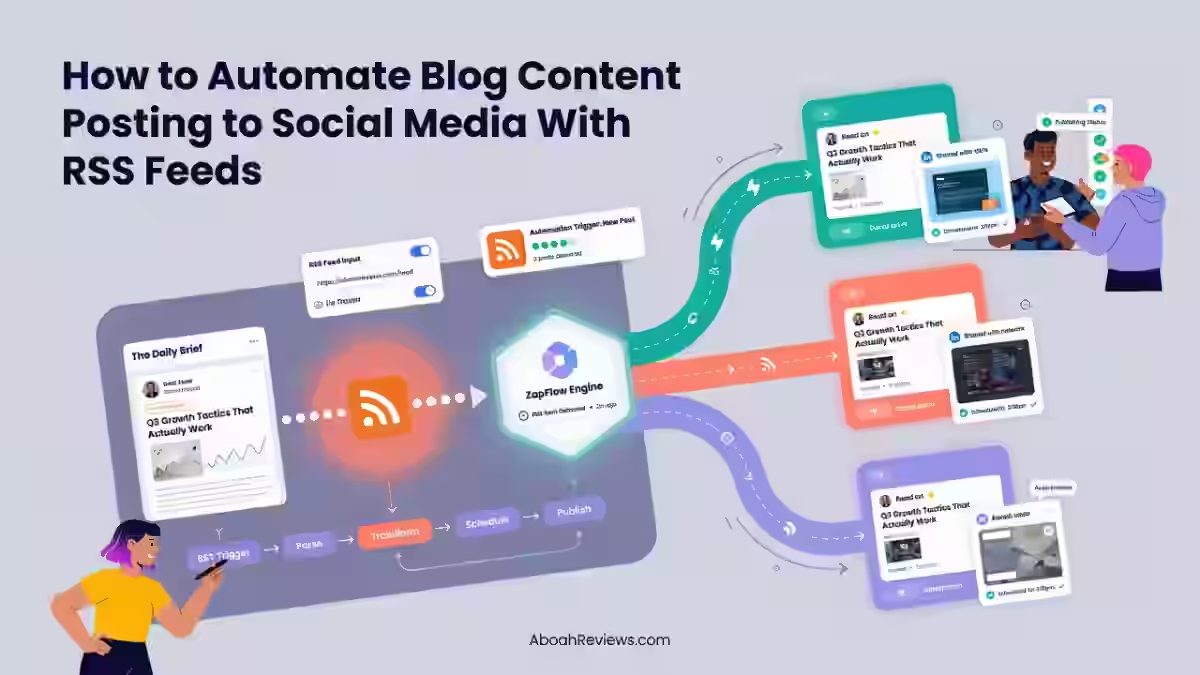
This is the practical setup section. I’ve gone through this process across multiple sites. The steps below reflect what actually works, not an idealized demo workflow.
Step 1: Find Your Blog’s RSS Feed
Your RSS feed URL is the starting point for the entire workflow. WordPress generates several feed formats automatically:
- Main feed:
yourdomain.com/feed/ - Category feed:
yourdomain.com/category/seo/feed/ - Tag feed:
yourdomain.com/tag/autoblogging/feed/
To test it, paste the URL into your browser. You should see an XML file with your recent posts.
If you want to only trigger automation for specific content types, use a category or tag feed rather than your main feed. That single decision cuts a lot of noise from your workflow.
Check that these fields are present in your feed output:
<title>— your post title<link>— the post URL<description>or<excerpt>— the post summary<enclosure>or<media:content>— the featured image<pubDate>— publication date
If the image field is missing, add it via functions.php before you build the workflow, not after.
Step 2: Choose an RSS Automation Tool
Not all tools in this space serve the same purpose. Here’s a quick orientation:
- Zapier and Make are automation platforms. They connect apps and run logic. They are not social publishers by themselves.
- Buffer and dlvr.it are social publishing tools. They handle scheduling and posting to social networks.
- IFTTT sits in the middle. It handles simple two-step applets, including RSS-to-social directly.
For a full workflow, most people end up combining two layers: an automation platform plus a social publisher. The tool section later in this article breaks down pricing and use cases for each.
Step 3: Connect Your RSS Feed
In Zapier, this looks like:
- Create a new Zap
- Choose “RSS by Zapier” as your trigger app
- Select “New Item in Feed” as the specific trigger. You’ll need to input the RSS feed URL you want to monitor.
- Run a test to confirm Zapier pulls real feed data
- Check which fields are returned (title, link, description, image)
In Make, use the RSS module with the same feed URL. The visual canvas makes it easier to see the workflow, though the initial setup takes a few more clicks.
Step 4: Connect Your Social Publishing Platform
After the RSS trigger, you add an action. Depending on your setup:
- Buffer via Zapier: Trigger = RSS New Item → Action = Buffer Add to Queue
- Direct Facebook Page: Some automation platforms support direct Facebook posting
- Direct LinkedIn: Available in Zapier with a LinkedIn action
- Direct X (Twitter): Available natively in Zapier and Make
Social network availability varies by tool and changes as platforms update their APIs. Always test direct connections before assuming they work.
Step 5: Map RSS Content to Your Social Post
This step decides what actually appears in the social post. Map RSS fields to post elements:
RSS Field | Social Post Element |
|---|---|
| Headline or opening line |
| URL in the post body |
| Excerpt or supporting text |
| Featured image |
| Scheduling reference |
A basic caption template that works:
New on the blog: [Title]

[Short excerpt or custom context]

Read more: [URL]
Keep it short. Most platforms reward concise posts over long-form captions in automated workflows.
Step 6: Add Filters and Duplicate Protection
This is the step most guides skip, and it’s where bad workflows break down.
Without filters, you’ll end up posting every article including draft restores, category archive updates, and content you never meant to share publicly.
Add these controls:
- Category filter: Only trigger if the post belongs to a specific category
- Keyword filter: Include or exclude posts with certain words in the title
- GUID deduplication: Use the post’s unique GUID or URL to prevent the same article posting twice
- Publication status check: Confirm the post is published, not draft or pending
The clean flow: RSS → Filter → Deduplicate → Format → Publish
Every time a new item is posted in your feed, Zapier will create a new post in a new RSS feed. You can filter your feed and eliminate clutter with this integration.
Step 7: Test the Automation
Before activating, run a full test and check every element:
Do not skip this step. I’ve seen workflows go live with the wrong social account selected, posting to a test page with 12 followers instead of a brand account with 12,000.
Step 8: Activate and Monitor the Workflow
Once live, watch the first 5 to 10 posts manually. Check that:
- Posts appear within the expected time window (usually 5 to 30 minutes after publication)
- Images load correctly on each platform
- No duplicate posts appear in your feed history
- Automation logs show successful runs, not silent failures
Adjust formatting if the auto-generated captions look truncated or broken. Many RSS descriptions contain HTML tags that render as visible code in social posts if you haven’t cleaned the field output.
My Recommended RSS-to-Social Media Workflow
I set up a test workflow across a content-heavy WordPress blog publishing between 8 and 12 articles per month. The architecture I settled on after testing alternatives:
WordPress → RSS feed (category-specific) → Zapier → Buffer → LinkedIn + X + Facebook Page
I used a category-specific RSS feed (/category/seo/feed/) so that only editorial content triggered the workflow, not housekeeping posts or admin pages.
How Long Did Setup Take?
Here is an honest breakdown:
- Initial Zapier setup (RSS trigger + Buffer action): 25 minutes
- Connecting and authorizing social accounts in Buffer: 15 minutes
- Setting up caption template and field mapping: 20 minutes
- Testing and fixing image field issue: 45 minutes
- Total first-run setup: approximately 105 minutes
The image issue added most of the time. WordPress didn’t include the featured image in the RSS feed by default, so I had to add a snippet to functions.php before the image field appeared in Zapier’s test pull.
How Reliable Was the Automation?
Over 60 articles across a 3-month test period:
- Successful RSS triggers: 57 out of 60
- Failed triggers (due to feed caching delays): 3
- Duplicate posts published: 0 (GUID deduplication worked)
- Images missing from social posts: 4 (caused by posts published without a featured image assigned)
- Average trigger delay after publication: 12 minutes
The 3 failed triggers were caused by WordPress’s aggressive feed caching. The fix was a simple cache-busting query string added to the feed URL in Zapier. Worth knowing before you troubleshoot for an hour.
My Results and Verdict
Element | Rating | Notes |
|---|---|---|
Reliability | 57/60 triggers | Feed caching caused 3 misses |
Ease of setup | Moderate | Image field took extra configuration |
Trigger speed | ~12 min average | Acceptable for blog distribution |
Caption formatting | Good with template | Required cleanup for HTML in descriptions |
Image handling | 56/60 successful | Requires featured image to be set |
Duplicate prevention | 100% effective | GUID-based deduplication worked perfectly |
Overall verdict | Worth setting up | Saves 2 to 4 hours per month at 10 posts/month |
Best Tools to Automatically Post RSS Feeds to Social Media
Tool | RSS Support | Primary Role | Best For | Main Limitation | Starting Price |
|---|---|---|---|---|---|
Zapier | Yes (native) | Automation platform | Flexible multi-step workflows | Can get expensive at scale | $19.99/month |
Make.com | Yes (native) | Automation platform | Complex conditional logic | Steeper learning curve | $9/month |
Buffer | Yes, via integrations | Social publishing | Scheduling and queue management | Not an automation engine itself | $6/month per channel |
IFTTT | Yes (native) | Simple automation | Single-step RSS-to-social applets | Limited logic and filtering | $2.50/month (Pro) |
dlvr.it | Yes (primary feature) | RSS distribution | RSS-heavy, high-volume publishers | No AI, limited modern features | $9.99/month |
Zapier
RSS by Zapier allows you to trigger Zap workflows with new RSS feed items, as well as add items to your own RSS feed. The “New Item in Feed” trigger is the starting point for most RSS-to-social workflows built in Zapier.
Zapier’s strength is flexibility. You can add filters, format captions, run conditional logic, and connect to 6,000+ apps including Buffer, LinkedIn, Facebook, X, and Slack.
The integration allows AI by Zapier to analyze each new item fetched from your RSS feed.
After setting up “RSS by Zapier” as the trigger, you can add an action with “AI by Zapier” where AI models analyze or summarize the fetched content based on your specified needs.
Best for: Anyone who needs multi-step workflows, conditional filters, or integration with tools beyond just social networks.
Limitation: Pricing climbs quickly when you run multiple Zaps with frequent polling.
Make
Make (formerly Integromat) uses a visual canvas to build workflows with modules. The RSS module is native and straightforward.
Where Make outperforms Zapier is in complex branching logic, error handling, and data transformation.
You can run routers that send RSS data down different paths depending on category, word count, or any other field value.
Best for: Advanced users who need multi-branch workflows or want more control over data formatting without extra cost.
Limitation: The visual interface is powerful but takes longer to understand than Zapier’s step-by-step builder. Expect a 2 to 3 hour learning curve.
Buffer
Buffer’s tools let you schedule posts, analyze performance, and publish to a half-dozen social networks from one app.
Buffer is primarily a social publishing and scheduling platform, not an automation engine. You connect it to Zapier or Make as the final delivery step. Buffer’s pricing starts at $6 per month per channel for individuals.
Buffer also supports direct RSS feed connections through its own interface, though the logic and filtering options are limited compared to building a Zapier workflow.
Best for: Teams who want a clean social calendar and scheduling queue on top of an RSS-driven workflow.
Limitation: If you only use Buffer for RSS, you’re paying for features you don’t need. Pair it with Zapier for a more complete setup.
IFTTT
IFTTT keeps things simple. You create an applet: “If new item in RSS feed, then post to Facebook Page.” No multi-step workflows. No conditional logic. Just a clean, single trigger-to-action connection.
The trade-off is that IFTTT’s trigger polling interval on free and basic plans is slower than Zapier’s, sometimes taking 15 to 60 minutes to detect a new feed item. For time-sensitive content, that delay matters.
Best for: Solo bloggers or small publishers who want a basic RSS-to-social setup without learning an automation platform.
Limitation: Not suited to complex workflows. You can’t add filters, reformat captions dynamically, or route content to multiple platforms with different formatting in a single applet.
dlvr.it
dlvr.it is a social media automation platform designed to help you post content across multiple platforms automatically.
It takes your blog posts, RSS feeds, or curated content and publishes them to your social channels. It’s particularly popular among bloggers, small businesses, and digital marketers who want to maintain a consistent posting schedule.
Compared to more general social media management tools, dlvr.it offers a more focused and streamlined solution for RSS-based content syndication.
Best for: Publishers with frequent content output who want an RSS-specific tool without building a multi-platform automation stack.
Limitation: dlvr.it is cheap but lacks modern features. No AI caption generation, limited analytics, and the interface feels dated compared to Buffer or Make.
Does WordPress Have an RSS Feed?
Yes. WordPress generates RSS feeds automatically for every site. You don’t need a plugin to create one. You can access an RSS feed by appending /feed/, /feed/rss/, or /feed/rss2/ to just about any WordPress-generated page.
You also get category and tag feeds automatically, which is what makes WordPress especially useful for filtered RSS automation.
How to Find and Test a WordPress RSS Feed
- Open your browser
- Type
yourdomain.com/feed/and press Enter - You should see an XML file showing your 10 most recent posts
- Paste the URL into W3C’s Feed Validation Service to confirm it’s well-formed
- Check for the image field. If it’s missing, add the featured image to RSS via
functions.php
For category-specific feeds: yourdomain.com/category/your-category-name/feed/
WordPress RSS Feed vs Social Media Plugin
There are three main approaches to sharing WordPress posts to social media automatically:
Approach | How It Works | Best For | Trade-off |
|---|---|---|---|
RSS automation | Feed triggers external workflow | Flexible, tool-agnostic | Requires 2-layer setup |
WordPress social plugin (e.g., Jetpack, Blog2Social) | Publishes directly from WordPress on post | Simple, one-tool setup | Limited to plugin’s supported networks |
Direct social API integration | Custom code connects WP to social API | Full control | Requires developer |
For a deeper look at WordPress plugins built specifically for this, see the best autoblogging WordPress plugins roundup.
Can You Automate Only Certain WordPress Posts?
Yes, and you should. Automating every post including drafts restored to published status, minor edits republished, and low-priority admin content will flood your social profiles with noise.
Control what triggers the workflow by:
- Using a category-specific RSS feed
- Adding keyword filters in Zapier or Make
- Filtering by author (useful for multi-author sites)
- Only triggering on standard “post” post types, not pages or custom post types
- Setting a minimum word count filter
This connects directly to the broader question of how to do autoblogging responsibly. The same editorial discipline that applies to content production applies to content distribution.
How to Automate RSS Content Across Multiple Social Networks
One RSS feed can trigger workflows that distribute content to multiple social networks, provided the automation or publishing tools support those destinations.
A single Zapier workflow can fan out to Buffer, which then posts to LinkedIn, Facebook, X, and Pinterest simultaneously.
One RSS Feed to Multiple Social Networks
The architecture looks like this:
WordPress Blog
    ↓
Category RSS Feed
    ↓
Zapier (New Item in Feed trigger)
    ↓
[Optional] Filter by category or keyword
    ↓
[Optional] AI caption formatting
    ↓
Buffer (Add to Queue)
    ↓
LinkedIn | Facebook Page | X | Pinterest
This is the same basic architecture I used in my own test. The single RSS feed acts as the content source, and Buffer handles the distribution scheduling across platforms.
Should You Publish the Same Message Everywhere?
No. Posting the exact same text to LinkedIn, X, Facebook, and Pinterest in one shot works technically.
It doesn’t work as a content strategy. Each platform has a different audience expecting different things.
Automated tweets that use AI rewriting are not low-quality “New post: [Title]” announcements. They are engaging, varied, and optimized for the platform.
That’s the standard to aim for, even if you’re automating.
Platform-Specific Formatting
Platform | Key Consideration |
|---|---|
Conversational tone, link previews work well, 1 to 3 sentences | |
Professional context, explain why the article is worth reading | |
X (Twitter) | Concise, strong hook in first 10 words, stay under 280 characters |
Strong visual required, descriptive title with relevant keywords |
- Character limits as of 2026: X allows 280 characters (standard accounts)
- LinkedIn allows up to 3,000 characters per post
- Facebook allows up to 63,206 characters (though no one should use all of that)
- Pinterest descriptions allow up to 500 characters.
RSS + AI Social Media Automation
Generate Social Captions From RSS Content
Instead of using the raw RSS excerpt as your social caption, you can route the RSS data through an AI step first.
Workflows exist that automate the process of converting RSS feed articles into ready-to-publish social media posts using OpenAI, NocoDB, and Telegram.
It’s ideal for content teams, marketing managers, or news portals seeking to automate content curation while maintaining control through a human approval system.
The AI step takes the article title, URL, and excerpt, then generates a platform-specific caption based on a prompt you define. This produces meaningfully better captions than raw RSS field mapping.
Create Platform-Specific Social Posts With AI
The workflow with AI integrated:
RSS New Item → Zapier Filter → AI by Zapier (generate LinkedIn caption) → Buffer (LinkedIn queue)
                            → AI by Zapier (generate X caption) → Buffer (X queue)
You write a prompt once per platform. Something like: “Write a LinkedIn post under 200 words based on this blog title and excerpt. Use a professional tone. End with a question to encourage comments.”
Add Human Approval Before Publishing
Fully automated AI publishing creates problems I’ve seen firsthand: incorrect claims, poorly worded captions, repetitive phrasing, and brand voice inconsistencies.
Even a 30-second review before posts go live catches most of this.
Set up your RSS automation, write great AI instructions, then check the output for the first 5 to 10 automated posts.
Make sure the AI is producing content you are happy with. Adjust your instructions if needed.
After the initial testing period, you can reduce review frequency. But never eliminate it entirely for brand-sensitive accounts.
Advanced RSS + AI Workflow
WordPress → RSS → Category Filter → AI caption generation → UTM parameters added → Buffer queue → LinkedIn + X + Facebook + Pinterest
Adding UTM parameters at the automation layer means every social post is trackable in Google Analytics from day one, without remembering to add them manually.
RSS Automation for Autoblogging
Content Creation Automation vs Content Distribution Automation
These are two separate stages and they don’t share tools. Understanding how autoblogging works helps clarify the boundary:
- Content creation: AI tools or aggregation systems generate or import the article and publish it to WordPress
- Content distribution: RSS detects the published article and routes it to social media
RSS automation sits entirely in the distribution stage. It does not care how the content was created. It only cares that a new item appeared in the feed.
Complete Autoblogging Social Distribution Workflow
For autobloggers running high-volume content operations, the full chain looks like this:
Keyword research
    ↓
AI content generation (e.g., Autoblogging.ai, Junia AI)
    ↓
WordPress publish
    ↓
RSS feed updates
    ↓
Automation platform (Zapier/Make)
    ↓
Social publishing (Buffer/dlvr.it)
    ↓
LinkedIn | Facebook | X | Pinterest
I’ve tested tools like Emplibot and Junia AI in this kind of pipeline. The content creation side and the distribution side are genuinely separate decisions.
One bad choice in content quality doesn’t get fixed by a good distribution setup.
RSS as the Bridge Between Your Blog and Social Media
For autobloggers, RSS is particularly useful because it’s passive.
Once configured, every article that gets published automatically enters the social distribution workflow without any manual action.
For sites publishing 20+ articles per month, that’s a real time saving.
The benefits of auto-blogging tools discussion usually focuses on content production speed. RSS automation extends that argument to distribution. You’re not just publishing faster. You’re promoting faster too.
What Autobloggers Should Still Review Manually
RSS automation does not fix bad content. These elements still need human attention:
- Article accuracy: AI-generated claims that are wrong will still be promoted automatically
- Images: Auto-generated images sometimes look off-brand or contextually wrong
- Social captions: AI-generated captions can repeat the same structure post after post
- Links: Check that internal links and affiliate links were set correctly before the post triggers the feed
- Publishing frequency: Too many posts per day from automation trains your audience to ignore you
- Duplicate content: Check that the same content isn’t being distributed more than once across platforms
I lost an affiliate site’s rankings after publishing 42 auto-generated posts without internal linking or keyword filtering. The content cannibalized itself.
Once you add RSS automation on top of that, you’re promoting cannibalized content across social channels. Check your content before you automate its distribution.
For more on the most damaging errors in this space, the common autoblogging mistakes guide covers the exact patterns that cause ranking drops.
How to Automatically Share Blog Posts Without Creating Repetitive Social Posts
Repetitive social posts are one of the most common complaints about RSS automation.
Every post gets the same format, the same caption structure, the same CTA. Over time, your followers train themselves to scroll past.
Create Different Captions for Each Platform
Use a separate AI prompt or caption template per platform. The LinkedIn version should explain professional context.
The X version should lead with a hook. The Facebook version should be conversational. Same article. Different angle.
Customize Social Post Length
Set character limits in your AI prompts. X captions should stay under 220 characters to leave room for the URL.
LinkedIn captions can run 150 to 250 words if the topic warrants it. Pinterest descriptions should be keyword-rich and run 100 to 150 characters.
Add Platform-Specific CTAs
Use different calls to action per platform:
- LinkedIn: “What’s your take on this?” or “Curious what your experience has been.”
- X: “Thread or thoughts below.”
- Facebook: “Drop your question in the comments.”
- Pinterest: Save this for later and click through for the full guide.
Vary Publishing Times
Don’t send every article to all platforms simultaneously. Stagger publishing across a 24 to 48 hour window.
Buffer’s queue feature handles this automatically. This prevents your social profiles from going silent between posts and then flooding followers all at once.
Use UTM Parameters
Add UTM parameters to every social link so you can track performance by platform. A standard structure:
utm_source=linkedin&utm_medium=social&utm_campaign=blog-rss&utm_content=article-title
Build this into the automation step so it’s applied consistently, not manually.
Avoid Publishing Every Article Automatically
Not every article deserves social promotion on the day it’s published.
Internal documentation, thin supporting pages, comparison tables, and niche technical articles often perform better when promoted deliberately, not automatically.
Use category filters to exclude these from the RSS trigger.
Common RSS-to-Social Media Automation Problems & How to Fix Them
1. RSS Feed Isn’t Triggering
The RSS feed isn’t triggering because the feed URL is wrong, the feed hasn’t updated yet, or a polling delay is delaying detection.
Check:
- The full feed URL resolves in a browser
- The most recent article actually appears in the feed
- You haven’t hit a cached version (add
?v=2to force a refresh) - The automation platform has the correct polling interval set
2. Featured Image Isn’t Appearing
The featured image isn’t appearing in social posts because WordPress doesn’t include featured images in RSS by default, and the image field in the feed may be empty.
Solutions:
- Add a functions.php snippet to include
<media:content>in the feed - Once implemented, your RSS feed will contain a media:content element with the image URL, medium, and type attributes that social tools can read.
- Check that every post has a featured image set before publishing
- Confirm the destination platform supports image rendering from RSS data
3. Social Post Contains the Wrong Text
The social post contains the wrong text because the RSS description field is mapped instead of the excerpt, or HTML tags from the article are being passed through as raw text.
Fix the field mapping in your automation platform. Use the description field for short excerpts.
Strip HTML before the caption is formatted. Most automation platforms have a “Text” or “Strip HTML” formatter step.
4. Duplicate Posts Are Being Published
Duplicate posts are being published because two overlapping automations are processing the same feed item, or the GUID deduplication step is missing.
Solutions:
- Enable GUID or URL-based deduplication in Zapier or Make
- Check whether you have two active automations watching the same feed
- Review automation history to identify which run created the duplicate
5. Automation Is Publishing Too Frequently
The automation is publishing too frequently because there are no filters on the RSS trigger and every published post type is being caught.
Add:
- A category filter to limit which posts trigger the workflow
- A minimum publishing interval (e.g., max 2 posts per day per platform)
- Exclusions for specific categories or tags
- A scheduling step so posts are queued, not published instantly
6. RSS Feed Isn’t Updating
The RSS feed isn’t updating because the post wasn’t published correctly, or WordPress is serving a cached version of the feed.
Check:
- The post is published (not scheduled, draft, or pending)
- WordPress object cache isn’t holding a stale feed version
- The automation platform’s polling interval matches your publishing frequency
7. Social Account Connection Has Expired
Social account connections expire because most social platforms require OAuth reauthorization every 60 to 90 days, and platform API changes can invalidate existing connections without warning.
Set a recurring calendar reminder to check active connections monthly.
Expired connections fail silently in some tools, meaning articles get processed but never posted.
Best Practices for RSS Feed Social Media Automation
1. Don’t Automatically Publish Everything
Only promote content that’s worth promoting. Filter out:
- Private or members-only posts
- Thin or placeholder articles
- Category or tag archive pages
- Internal announcements
- Posts under 300 words
2. Don’t Use the Exact Same Caption Everywhere
Adapt copy to each platform. What reads naturally on LinkedIn sounds off on X.
Write or generate platform-specific templates once and reuse them in your automation prompts.
3. Use Featured Images Where Supported
Platforms favor image-based posts because they generate higher engagement. Users are more likely to stop scrolling when they see a striking visual.
Always assign a featured image before publishing, so the RSS workflow can pass it through to social platforms.
4. Add UTM Tracking
Every automated social post should include UTM parameters. This is the only way to accurately measure how much traffic your RSS automation is actually generating. Without it, you’re guessing.
Standard template: utm_source=[platform]&utm_medium=social&utm_campaign=rss-distribution
5. Monitor Failed Automations
Check your automation platform’s task history every week. Look for:
- Failed runs with error codes
- Broken image URLs
- Incorrectly formatted captions
- Posts that triggered but never reached the destination
Zapier and Make both have history logs. Set up an email alert for failed Zaps so you’re notified within hours, not days.
6. Monitor Trigger Delays
Measure the time between article publication and social post going live. A healthy workflow runs within 5 to 20 minutes.
Delays beyond 30 minutes usually indicate a feed caching issue or a polling interval that’s too infrequent.
7. Keep Human Oversight
Automation should handle the repetitive distribution work. It should not replace editorial judgment.
According to Google’s Search Quality Rater Guidelines, content quality, accuracy, and trust signals are evaluated at the content level, not just the distribution level.
Posting bad content more efficiently doesn’t help rankings.
Final Verdict: Is RSS Feed Automation Worth Using for Blog Promotion?
Yes, RSS-to-social automation is worth setting up if you publish content regularly and want a reliable way to share new articles without doing it manually every time.
Connecting RSS feeds to a social tool means your posts can be automatically shared on Facebook, Instagram, LinkedIn, and more.
The setup takes a couple of hours. The ongoing time saving is 2 to 5 hours per month at a typical publishing frequency of 10 to 20 articles.
The realistic expectation is that RSS automation handles distribution, not strategy. It won’t write compelling captions, build audience relationships, or fix weak content. It will reliably route your published articles to the right platforms on time.
For autobloggers and high-volume publishers, RSS automation is particularly useful because each newly published article can automatically enter a social distribution workflow without requiring manual sharing.
That’s the primary value: removing a repetitive manual step from a workflow that already runs at scale.
Tool Recommendation Summary
Need | Recommended Option |
|---|---|
Simple RSS-to-social automation | IFTTT |
Flexible multi-step automation | Zapier |
Complex conditional workflows | Make |
Social scheduling and queue management | Buffer |
RSS-focused direct distribution | dlvr.it |
AI caption generation added to workflow | Zapier + AI by Zapier |
Frequently Asked Questions About How to Automate Blog Content Posting to Social Media With RSS Feeds
Can I automatically post blog posts to social media?
Yes, you can automatically post blog posts to social media using your blog’s RSS feed connected to an automation platform like Zapier, Make, or IFTTT. When a new article is published, the RSS feed updates and triggers the workflow, which then sends the post title, URL, excerpt, and image to your chosen social networks. Setup takes between 1 and 3 hours depending on the tools and the number of platforms you’re connecting.
How do I automatically share WordPress posts on social media?
You automatically share WordPress posts on social media by copying your site’s RSS feed URL (found at yourdomain.com/feed/) and connecting it to an automation platform or a dedicated RSS-to-social tool like dlvr.it. From there, you map the feed’s title, URL, and excerpt fields to your social post template and activate the workflow. For platform-specific formatting or AI-generated captions, add a Zapier or Make step between the RSS trigger and the social publisher.
Can RSS feeds automatically post to Facebook?
Yes, RSS feeds can automatically post to Facebook Pages using tools like Zapier, IFTTT, Buffer, or dlvr.it. The RSS trigger detects new articles and routes the content to a Facebook Page post via the connected tool. Note that Facebook’s API does not support personal profile posting through third-party tools, only Pages.
What is the best RSS-to-social media automation tool?
The best RSS-to-social media automation tool depends on what you need. Zapier is the best all-round option for flexible, multi-step workflows connecting RSS to multiple social platforms. dlvr.it is the most focused option for publishers who primarily want RSS-to-social distribution without a broader automation stack. For simple single-step setups, IFTTT handles basic RSS-to-social applets with minimal configuration.
Can I use Zapier to automatically post RSS feeds to social media?
Yes, Zapier has a native “RSS by Zapier” integration with a “New Item in Feed” trigger that detects new articles. RSS by Zapier allows you to trigger Zap workflows with new RSS feed items, as well as add items to your own RSS feed. You connect that trigger to social platform actions (LinkedIn, Facebook Pages, Buffer, X) and map the RSS fields to your post template. Zapier’s free plan allows a limited number of Zaps.
Can I automate blog posts to multiple social media platforms?
Yes, one RSS feed can trigger workflows that post to multiple social platforms simultaneously or on a staggered schedule. The standard approach is: RSS trigger → automation platform (Zapier or Make) → social publisher (Buffer) → multiple connected networks. For better results on each platform, use platform-specific caption templates or AI prompts rather than sending the same text everywhere.
Is RSS automation the same as autoblogging?
Autoblogging refers to creating or importing content automatically and publishing it to a blog, often using AI writing tools or content aggregation. RSS automation refers to distributing already-published content from your blog to social media channels. RSS automation can be used alongside autoblogging as a distribution layer, but they solve different problems.

- Searchable Review 2026: My Honest Test Results With This AI Visibility Platform - October 9, 2026
- Ryze AI Review 2026: My 30 Days Full Breakdown of This Autonomous SEO & GEO Platform - October 9, 2026
- #1 Best Plugin for Automatic Blog Posting in WordPress (2026) - September 13, 2026